

Your first governed MCP call
This walkthrough picks up where your first governed LLM call left off: the trial is running, a provider key is set on gpt-5.2, and you have a Default-group API key in $BRUTOR_API_KEY. In about ten minutes you will:
- Run a small MCP server on your machine, register it in the Admin Console and give the Default resource group access to it.
- Connect to it in the User Portal as the trial user and let the assistant call its tool.
- Call the same tool from the command line through the Core Proxy, using your Default-group API key.
Brutor is the AI control plane, and an MCP tool call is where an AI System acts on the world. So every MCP call that goes through Brutor is checked before it reaches the server. Brutor checks who the caller is, whether their group may use this server and this tool, and the guardrails, limits and approvals that apply. Then the call is recorded. That record is what Brutor later uses to assure the AI System against its contract.
What you need
| Thing | Value |
|---|---|
| Admin Console | http://localhost:3002. Log in as a Tenant Admin, tenant ID default, username admin, password Admin123! |
| User Portal | http://localhost:3001. Username trial, password Trial123! |
| Core Proxy (all runtime traffic) | http://localhost:8100. MCP endpoint /v1/proxy/mcp/{server_id} |
| Resource group | Default. The trial user’s only group, and the group your API key belongs to |
| API key | $BRUTOR_API_KEY, a Default-group key (sk_brutor_api_...) from the first LLM call |
| MCP server | brutor-weather-mcp-server. One tool, get_current_weather(city), no authentication, streamable HTTP on port 3012 at /mcp |
| Tools on your machine | git, and uv or Python 3.13+ |
1. Run an MCP server and give the Default group access
Section titled “1. Run an MCP server and give the Default group access”
Watch Working with MCP Servers shows this section and more: registering an MCP server through the gateway, discovering its tools, prompts and resources, binding it to resource groups, controlling which capabilities each team can call, and using the tools from the User Portal chat.
Run the weather server
Section titled “Run the weather server”The weather server is a minimal FastMCP server. It looks up a city with OpenStreetMap Nominatim, then fetches current conditions from Open-Meteo. Neither service needs an API key.
git clone https://github.com/brutor-ai/brutor-weather-mcp-server.gitcd brutor-weather-mcp-serveruv run weather-mcp-server-remote.pyIf you don’t use uv, run python -m venv .venv && source .venv/bin/activate && pip install -e . && python weather-mcp-server-remote.py instead. Either way, the server listens on 0.0.0.0:3012 and serves MCP at http://localhost:3012/mcp. Set MCP_PORT to use another port.
Register it in the Admin Console
Section titled “Register it in the Admin Console”-
Open the Admin Console at http://localhost:3002 and log in as the tenant admin.
-
In the sidebar, go to Resources → MCP Servers → Configuration. Stay on the MCP Servers tab and click Add Server.
-
In Add New Server, fill in:
Field Value Display Name Weather AssistantDescription Current weather for a city (Open-Meteo)Server Base URL http://host.docker.internal:3012(on Linux, the address from the caution above)MCP endpoint is at root (/) unchecked MCP Endpoint Path /mcpAuthentication Type No Authentication The form shows the Complete MCP URL,
http://host.docker.internal:3012/mcp. Leave Enable health check (/health endpoint) unchecked, because this server has no/healthroute. Leave Automatically discover server capabilities checked and click Create Server. -
The new row shows the server ID under its name, for example
mcp-01M4Z.... The Capabilities column shows 1 tools, which means discovery reached the server and foundget_current_weather. It also records the protocol version the server negotiated. Click the capabilities cell to see the tool’s description and input schema.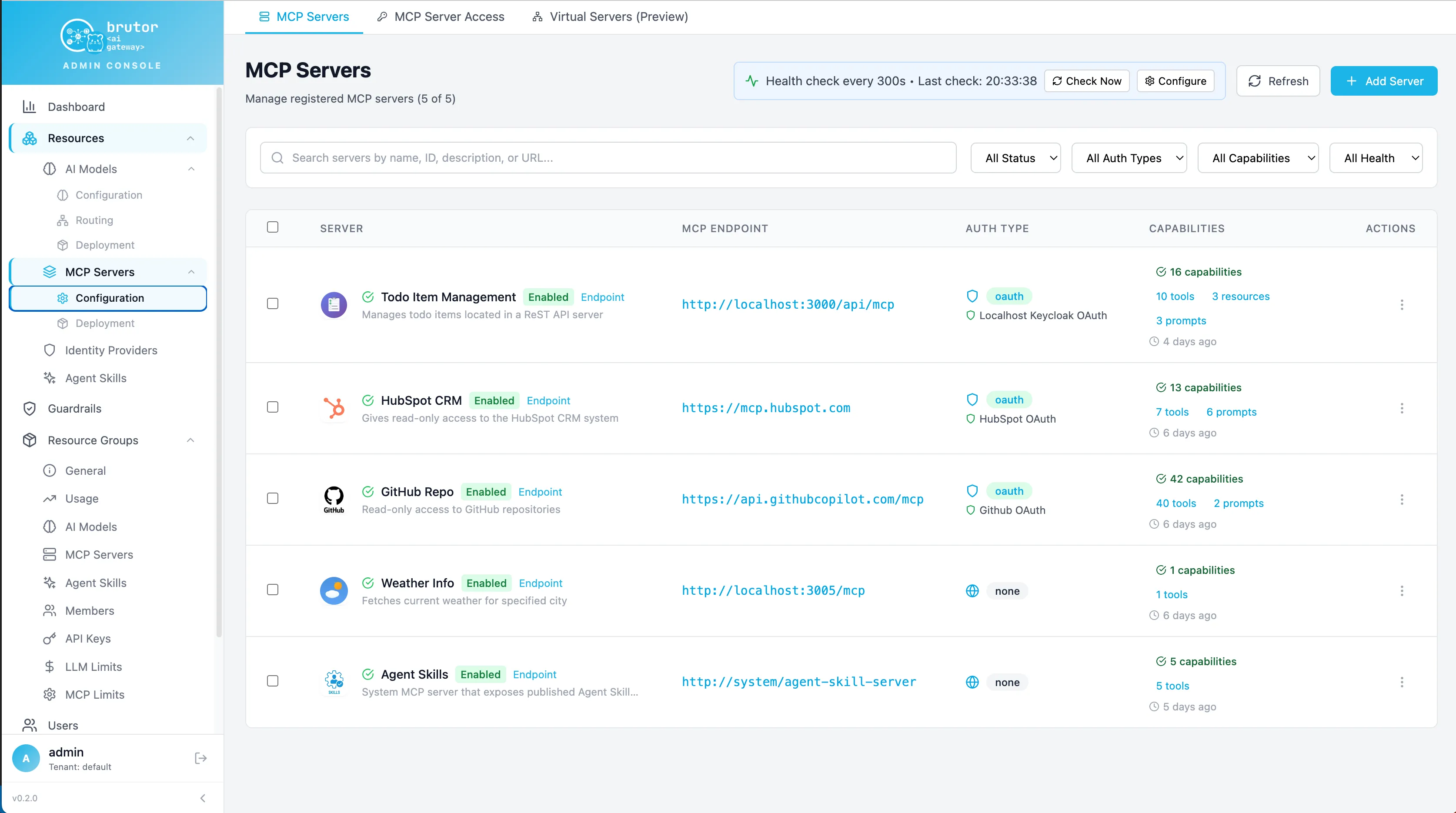
-
Open the row’s ⋮ menu and choose Endpoint Info. Copy the Proxy URL:
http://localhost:8100/v1/proxy/mcp/<server_id>. This is the governed address you’ll use from the CLI in step 3.
Give the Default group access
Section titled “Give the Default group access”Registering a server doesn’t give anyone access to it. Access comes from a server configuration, which binds the server to one or more resource groups. It is also how the portal and agents discover the server.
-
On the same page, open the MCP Server Access tab and click Create Server Config.
-
In Create Server Configuration, fill in:
Field Value Backend type MCP Server (real upstream) MCP Server Weather AssistantConfiguration Name weather-defaultDisplay Name (for Users) Weather Assistant. This is the name portal users seeAccess Control (Resource Groups) Default Enabled checked Click Create Configuration.
-
Check the result from the group’s side. Go to AI Estate → Resource Groups → Default, open Resources → MCP Servers, and find Weather Assistant with a Direct badge and its tool count.
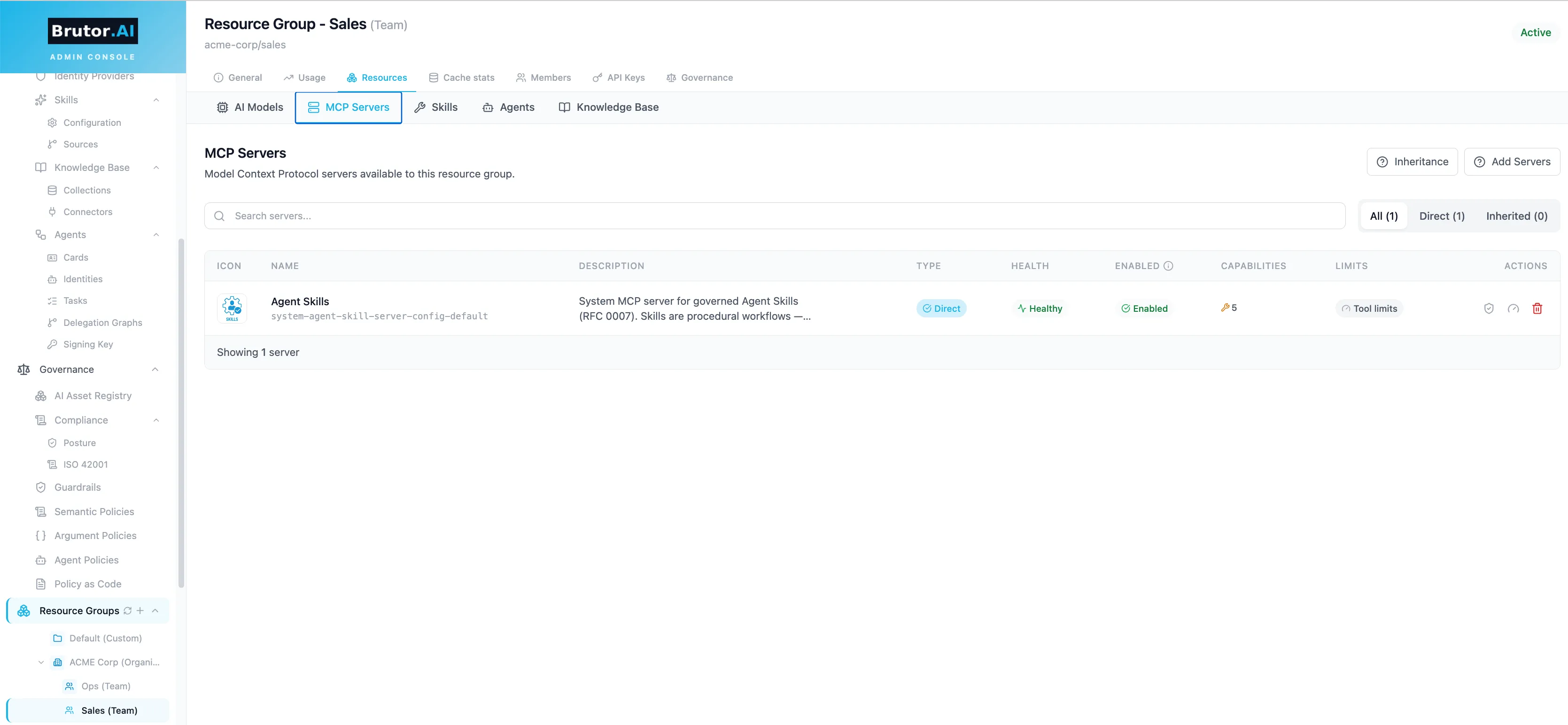
Tool-level access is a separate, optional step. With no capability filter, every tool on a bound server is allowed for the group. The shield icon in the row’s Actions column (Configure governance) opens the capability filters. There, each tool is set to Enabled, Approval or Disabled for this group, and you click Save Filters to apply. Tool limits next to it sets per-tool rate limits. You’ll use the filter in step 4.
2. Use the tool from the User Portal
Section titled “2. Use the tool from the User Portal”The trial user is a member of Default, so they can now see the server.
-
Open the User Portal at http://localhost:3001 and sign in as
trial/Trial123!. -
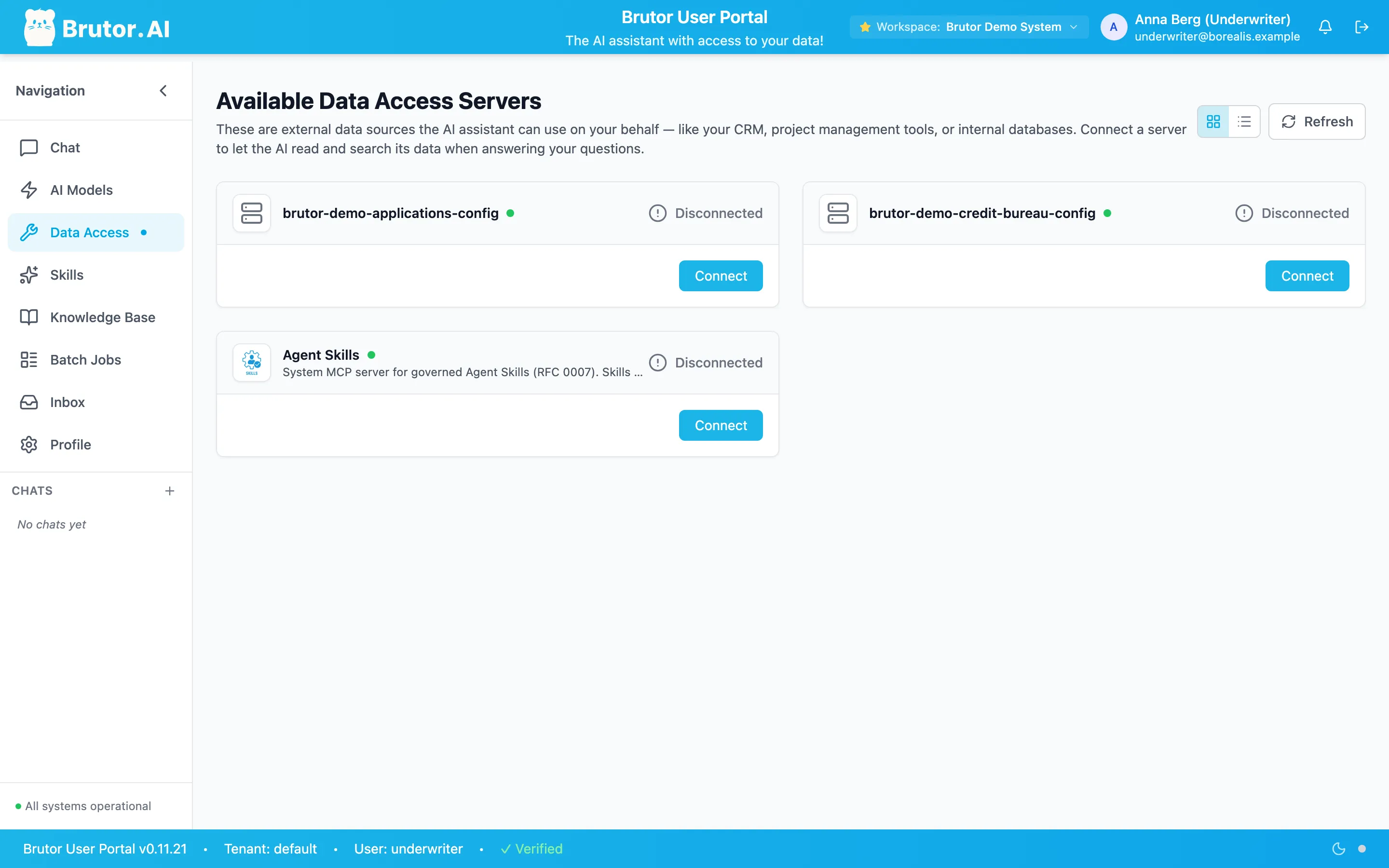
In the navigation, open Data Access. Under Available Data Access Servers you’ll see a Weather Assistant card. Click Connect. The card changes to Connected and shows how many tools, resources and prompts the server has.
-
Open Chat, pick OpenAI GPT-5.2 Auto-Routing, and ask: “What’s the weather in Berlin right now?”
-
The model decides to call
get_current_weather, and the portal asks you first. The Tool Call Approval Required dialog shows the tool, its server and the arguments the model chose ({"city": "Berlin"}). Click Approve Once. Approve All also works: it pre-approves this tool so the portal stops asking. You can revoke that later under Profile → MCP Settings → Tool Call Approval. Cancel refuses the call. -
The tool’s result, with the current temperature, conditions and wind for Berlin, goes back to the model, and the model answers in plain language.
That confirmation dialog is the portal asking you. It is separate from governance. The governed part happens in the Core Proxy. The portal has no direct connection to the weather server: it sends each MCP request to /v1/proxy/mcp/<server_id> with the trial user’s portal session, as user trial in group Default. Before the call reaches the server, the proxy checks group access, the tool’s capability filter, MCP limits and the Default Guardrails on the tool arguments (mcp_input). The result is scanned again (mcp_output) on the way back. Each step is recorded.
3. Call it from the CLI with a Default-group API key
Section titled “3. Call it from the CLI with a Default-group API key”Agents and scripts reach the same server with a Brutor API key. The key identifies the tenant and the group, so you don’t need an X-Tenant-ID header.
export BRUTOR_API_KEY="sk_brutor_api_..." # the Default-group key from the first LLM callexport MCP_URL="http://localhost:8100/v1/proxy/mcp/mcp-01M4Z..." # the Proxy URL from Endpoint InfoHow the endpoint works:
| URL | POST /v1/proxy/mcp/{server_id}. Don’t add /mcp to it. The proxy appends the server’s MCP Endpoint Path itself |
| Body | JSON-RPC 2.0: initialize, tools/list, tools/call and so on |
| Headers | Authorization: Bearer sk_brutor_api_... (or X-API-Key), Content-Type: application/json, Accept: application/json, text/event-stream |
| Sessions | The proxy passes MCP sessions through. This server is stateful, so initialize returns an mcp-session-id header, and you send it back as Mcp-Session-Id on every later call |
| Response | Whatever the server sends, after Brutor’s checks. This server answers as Streamable HTTP (event: message / data: {...}). Brutor adds x-correlation-id, which identifies the call’s proxy-log row |
The curl tab shows the raw protocol. The Python and Node.js tabs use the official MCP SDKs, which handle initialize, the session ID and SSE parsing for you. That is how a real agent connects.
# 1. initialize: note the mcp-session-id response headercurl -s -D - $MCP_URL \  -H "Authorization: Bearer $BRUTOR_API_KEY" \  -H "Content-Type: application/json" \  -H "Accept: application/json, text/event-stream" \  -d '{"jsonrpc":"2.0","id":1,"method":"initialize","params":{        "protocolVersion":"2025-06-18",        "clientInfo":{"name":"curl","version":"1.0"},        "capabilities":{}}}'
export MCP_SESSION="0b0cfcef9f2d4aa3920482a49441da22"   # the value you got
# 2. tell the server the client is ready (a notification: no id, empty 202 reply)curl -s $MCP_URL \  -H "Authorization: Bearer $BRUTOR_API_KEY" \  -H "Content-Type: application/json" \  -H "Accept: application/json, text/event-stream" \  -H "Mcp-Session-Id: $MCP_SESSION" \  -d '{"jsonrpc":"2.0","method":"notifications/initialized"}'
# 3. tools/listcurl -s $MCP_URL \  -H "Authorization: Bearer $BRUTOR_API_KEY" \  -H "Content-Type: application/json" \  -H "Accept: application/json, text/event-stream" \  -H "Mcp-Session-Id: $MCP_SESSION" \  -d '{"jsonrpc":"2.0","id":2,"method":"tools/list","params":{}}'
# 4. tools/callcurl -s $MCP_URL \  -H "Authorization: Bearer $BRUTOR_API_KEY" \  -H "Content-Type: application/json" \  -H "Accept: application/json, text/event-stream" \  -H "Mcp-Session-Id: $MCP_SESSION" \  -d '{"jsonrpc":"2.0","id":3,"method":"tools/call",       "params":{"name":"get_current_weather","arguments":{"city":"Berlin"}}}'
# pip install "mcp>=1.9" httpximport asyncio, osimport httpxfrom mcp import ClientSessionfrom mcp.client.streamable_http import streamable_http_client
MCP_URL = os.environ["MCP_URL"] # http://localhost:8100/v1/proxy/mcp/<server_id>
async def main(): headers = {"Authorization": f"Bearer {os.environ['BRUTOR_API_KEY']}"} async with httpx.AsyncClient(headers=headers, timeout=60) as http_client: async with streamable_http_client(MCP_URL, http_client=http_client) as (read, write, _): async with ClientSession(read, write) as session: await session.initialize() # session id handled by the SDK
tools = await session.list_tools() print([t.name for t in tools.tools]) # ['get_current_weather']
result = await session.call_tool( "get_current_weather", arguments={"city": "Berlin"} ) print(result.content[0].text)
asyncio.run(main())// npm install @modelcontextprotocol/sdkimport { Client } from "@modelcontextprotocol/sdk/client/index.js";import { StreamableHTTPClientTransport } from "@modelcontextprotocol/sdk/client/streamableHttp.js";
const transport = new StreamableHTTPClientTransport(new URL(process.env.MCP_URL), { requestInit: { headers: { Authorization: `Bearer ${process.env.BRUTOR_API_KEY}` }, },});
const client = new Client({ name: "first-mcp-call", version: "1.0.0" });await client.connect(transport); // initialize + session id handled by the SDK
const tools = await client.listTools();console.log(tools.tools.map((t) => t.name)); // [ 'get_current_weather' ]
const result = await client.callTool({ name: "get_current_weather", arguments: { city: "Berlin" },});console.log(result.content[0].text);await client.close();initialize response. These are the headers that matter. The proxy forwards the server’s session ID and adds its own correlation ID:
HTTP/1.1 200 OKcontent-type: text/event-streammcp-session-id: 0b0cfcef9f2d4aa3920482a49441da22x-correlation-id: 4c68426b-1803-44de-b625-ce4d6b34f1bbx-request-type: mcp-sse
event: messagedata: {"jsonrpc":"2.0","id":1,"result":{"protocolVersion":"2025-06-18","capabilities":{"experimental":{},"prompts":{"listChanged":false},"resources":{"subscribe":false,"listChanged":false},"tools":{"listChanged":false}},"serverInfo":{"name":"weather-assistant","version":"1.27.1"}}}
tools/list response. This lists only the tools the Default group is allowed to use. Right now, that is all of them:
event: messagedata: {"jsonrpc":"2.0","id":2,"result":{"tools":[{"name":"get_current_weather","description":"\nGets the current weather in a given location by using external service. \nFinds longitude and latitude for given city and fetches current temperature using Open-Meteo API.\n\nArgs:\n city: Location of interest (city name)\n \nReturns:\n Weather information including temperature, conditions, and wind speed\n","inputSchema":{"properties":{"city":{"title":"City","type":"string"}},"required":["city"],"title":"get_current_weatherArguments","type":"object"},"outputSchema":{"properties":{"result":{"title":"Result","type":"string"}},"required":["result"],"title":"get_current_weatherOutput","type":"object"}}]}}tools/call response. This is the server’s result, passed through after the mcp_output guardrail checks:
event: messagedata: {"jsonrpc":"2.0","id":3,"result":{"content":[{"type":"text","text":"🌤️ Weather information for Berlin, Deutschland:\n\n🌡️ Current Temperature: 12.2°C\n☁️ Weather Conditions: Overcast\n💨 Wind Speed: 7.9 km/h\n📍 Coordinates: 52.5173885, 13.3951309"}],"structuredContent":{"result":"🌤️ Weather information for Berlin, Deutschland:\n\n🌡️ Current Temperature: 12.2°C\n☁️ Weather Conditions: Overcast\n💨 Wind Speed: 7.9 km/h\n📍 Coordinates: 52.5173885, 13.3951309"},"isError":false}}4. See the call, then govern it
Section titled “4. See the call, then govern it”See it in the Admin Console
Section titled “See it in the Admin Console”-
Operations → Logs & Audit → Proxy Logs has one row for each MCP request, including
initializeandtools/list, not just tool calls. MCP rows fill in Resource (the server), Method (tools/call), Capability (get_current_weather), Principal (thetrialuser, or your group key), Target (the upstream URL), Duration and Status. Expand a row to see the SHA-256 digests of the request, the response and the tool’s definition, which seal what was called and with what. Open the row’s details to see the request and response body previews. To find one call, search for itsx-correlation-id.
-
Resource Groups → Default → Usage counts MCP Calls next to LLM tokens, with daily MCP Requests and an MCP usage panel. Your portal chat and your CLI calls both count here.
Govern it: turn a tool off for the group
Section titled “Govern it: turn a tool off for the group”A tool filter shows MCP governance most directly. It is a rule on the group, enforced by the gateway, and it holds for every client.
-
Go to Resource Groups → Default → Resources → MCP Servers. Click the shield (Configure governance) on Weather Assistant, set
get_current_weatherto Disabled, and click Save Filters. -
Run the
tools/callfrom step 3 again, using a new session if the old one has expired. The gateway refuses the call before it reaches the server and returns 403 Forbidden:{"error": {"message": "Access denied: tool 'get_current_weather' is disabled for your group"}}tools/listnow leaves the tool out, so an agent never sees it. The refusal is recorded too. Proxy Logs gets a403row with the attempted arguments and the reason, and the same applies in the portal chat. -
Set the tool back to Enabled and click Save Filters.
The same gateway also enforces Approval on a tool, so the call is held until a group member approves it. It also runs guardrails on the tool’s arguments and results, argument policies that parse a specific argument (for example, deny any SQL that writes), and per-tool rate limits. The pages linked below cover each one.
What just happened
Section titled “What just happened”The portal call and the curl call went through the same MCP pipeline in the Core Proxy:
- Identify the caller. The portal session or API key identifies the tenant, the user or key, and the resource group.
- Check access to the server. The server has to be bound to the caller’s group through an enabled server configuration.
- Apply limits. The group’s MCP quotas and per-tool rate limits are checked.
- Check the tool. The group’s capability filter decides Enabled, Approval or Disabled. Argument policies and the
mcp_inputguardrails check the arguments. - Forward and check the result. Brutor forwards the call without your key, adds the server’s own credentials if it has any, and scans the result with the
mcp_outputguardrails. - Record. A proxy-log row is written under the correlation ID and chained into the audit trail. Blocked calls are recorded the same way.
An MCP server is where an AI System takes actions. Brutor can only assure the actions it sees, and it sees every one that is pointed at it.